# Einrichtung eines IMAP-Mailkontos auf einem aktuellen iPhone

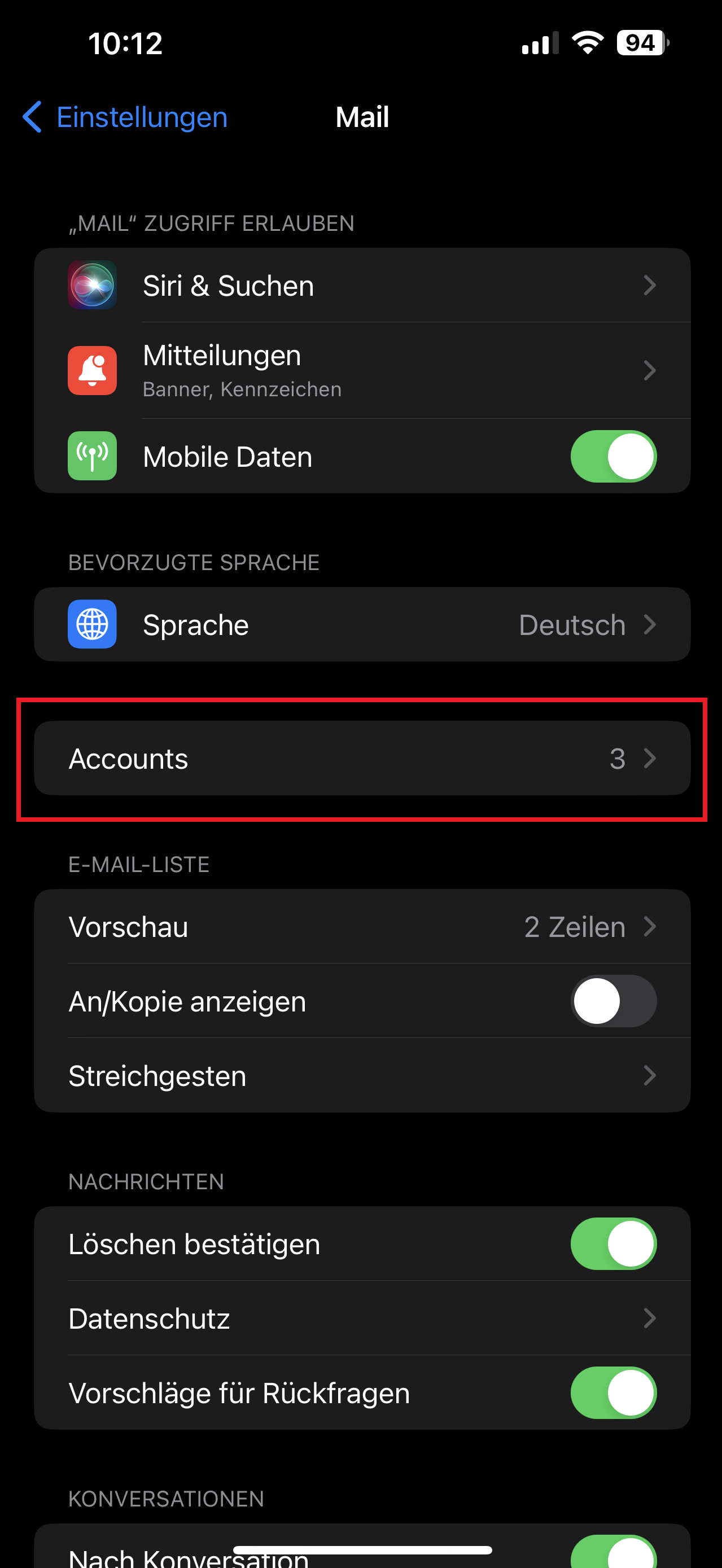
##### Öffne "Einstellungen" &gt; "Mail", und tippe anschließend auf "Accounts".

<table border="1" id="bkmrk-" style="border-collapse: collapse; width: 100%; border-width: 1px; border-style: hidden;"><colgroup><col style="width: 50.041%;"></col><col style="width: 50.041%;"></col></colgroup><tbody><tr><td style="border-width: 1px; border-style: hidden;">[![1.png](https://wiki.camyno.com/uploads/images/gallery/2023-07/scaled-1680-/1.png)](https://wiki.camyno.com/uploads/images/gallery/2023-07/1.png)  
</td><td style="border-width: 1px;">[![2.png](https://wiki.camyno.com/uploads/images/gallery/2023-07/scaled-1680-/2.png)](https://wiki.camyno.com/uploads/images/gallery/2023-07/2.png)

</td></tr></tbody></table>

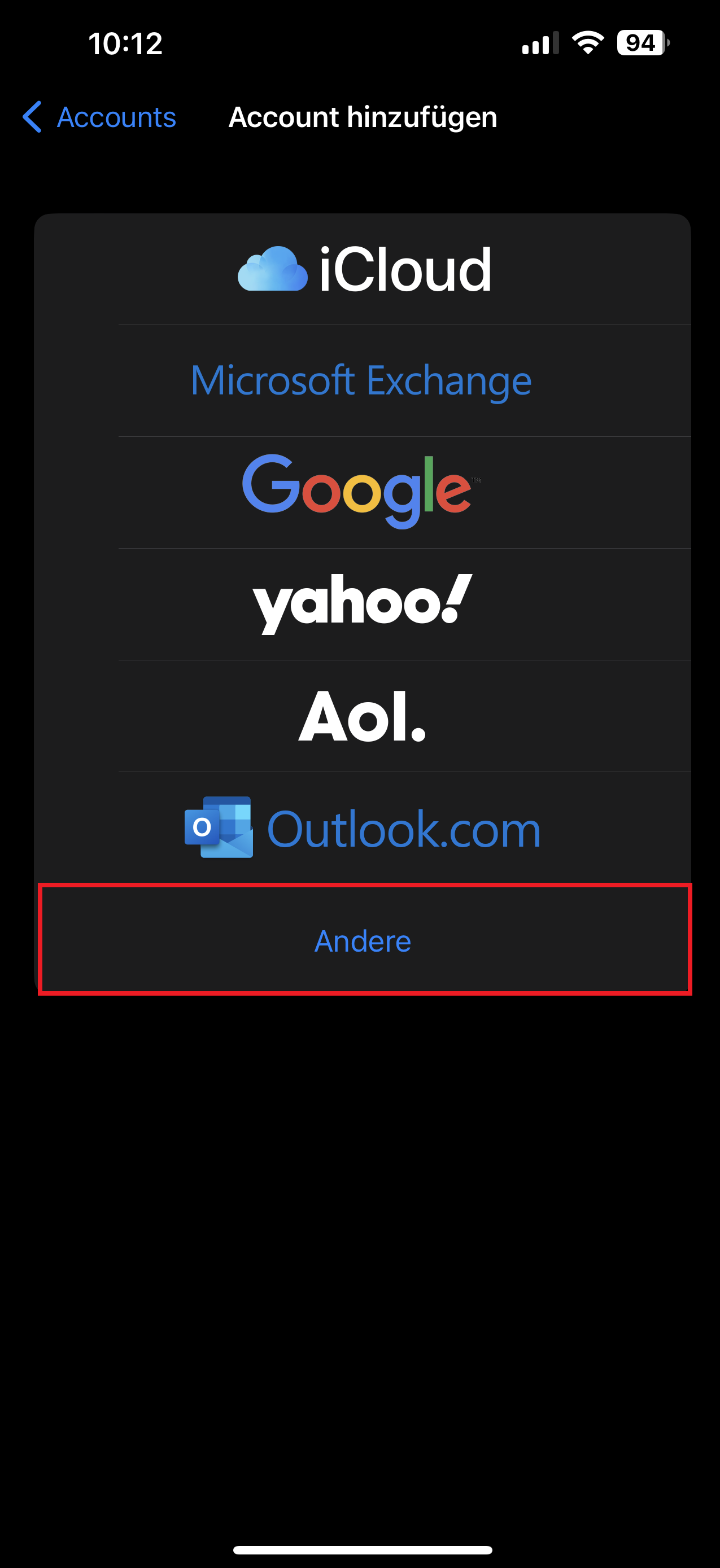
##### Tippe nacheinander auf "Account hinzufügen", "Andere" und "Mail-Account hinzufügen".

<table border="1" id="bkmrk--2" style="border-collapse: collapse; width: 100%; border-width: 1px; border-style: hidden;"><colgroup><col style="width: 50%;"></col><col style="width: 50%;"></col></colgroup><tbody><tr><td style="border-width: 1px; border-style: hidden;">[![3.png](https://wiki.camyno.com/uploads/images/gallery/2023-07/scaled-1680-/Jsd3.png)](https://wiki.camyno.com/uploads/images/gallery/2023-07/Jsd3.png)

</td><td style="border-width: 1px;">[![4.png](https://wiki.camyno.com/uploads/images/gallery/2023-07/scaled-1680-/4.png)](https://wiki.camyno.com/uploads/images/gallery/2023-07/4.png)

</td></tr></tbody></table>


##### Gib Name, E-Mail-Adresse, Passwort und eine Beschreibung für den Account ein.

[![Photo-2023-07-06-11-10-42_2774.PNG](https://wiki.camyno.com/uploads/images/gallery/2023-07/scaled-1680-/photo-2023-07-06-11-10-42-2774.PNG)](https://wiki.camyno.com/uploads/images/gallery/2023-07/photo-2023-07-06-11-10-42-2774.PNG)

##### Tippe auf "Weiter". Mail versucht daraufhin, die E-Mail-Einstellungen zu ermitteln und die Accounteinrichtung abzuschließen. Wenn Mail die E-Mail-Einstellungen gefunden hat, tippe auf "Fertig", um die Accounteinrichtung abzuschließen.


### Manuelle Konfiguration

##### Wähle "IMAP" für den neuen Account.

##### Beschreibung: Anzeigename für den Account in iOS

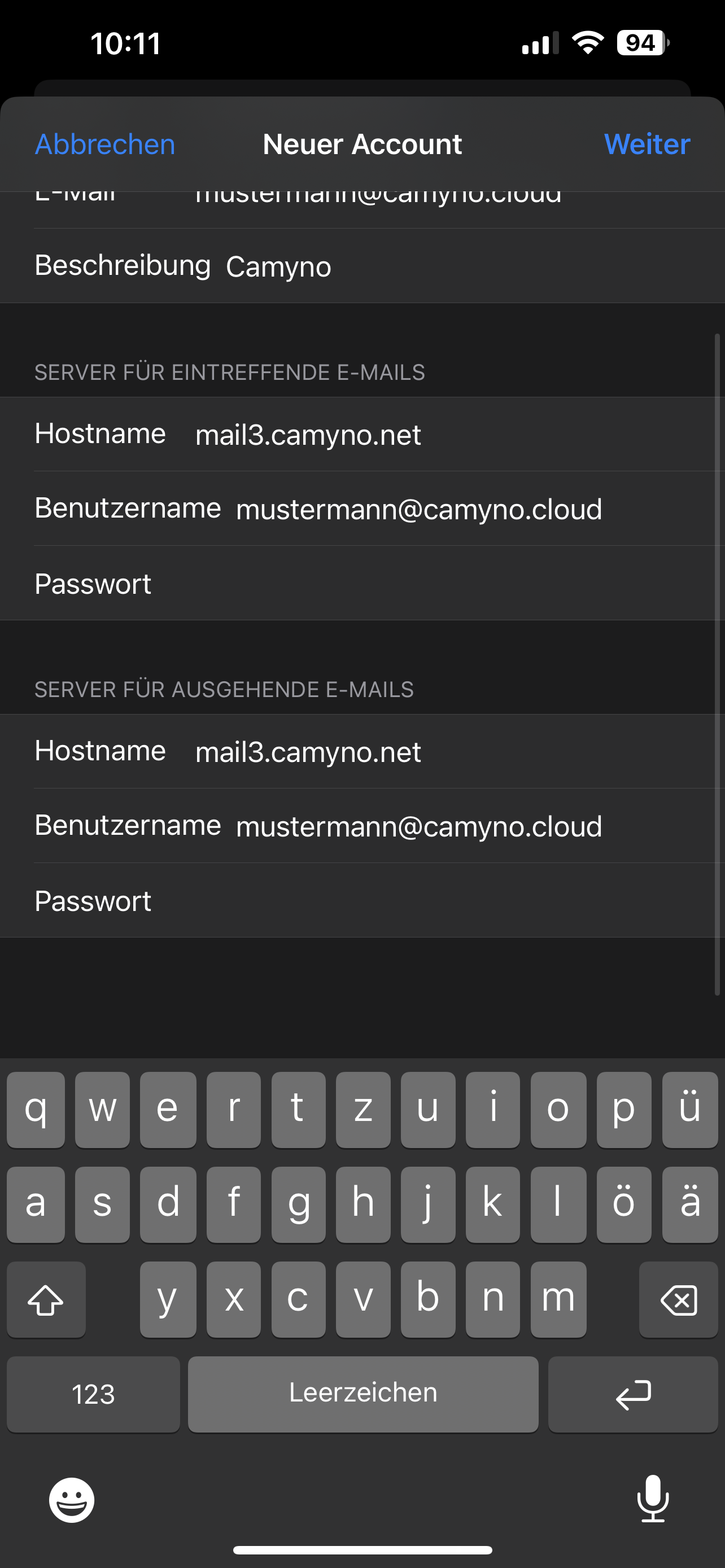
##### Restliche Daten bitte dem zugesendeten Datenblatt entnehmen.

<table border="1" id="bkmrk-%C2%A0-4" style="border-collapse: collapse; width: 100%; border-width: 1px; border-style: hidden;"><colgroup><col style="width: 50%;"></col><col style="width: 50%;"></col></colgroup><tbody><tr><td style="border-width: 1px; border-style: hidden;">[![5.png](https://wiki.camyno.com/uploads/images/gallery/2023-07/scaled-1680-/5.png)](https://wiki.camyno.com/uploads/images/gallery/2023-07/5.png)

</td><td style="border-width: 1px;">![Photo-2023-07-06-10-11-05_2765.PNG](https://wiki.camyno.com/uploads/images/gallery/2023-07/scaled-1680-/photo-2023-07-06-10-11-05-2765.PNG)</td></tr></tbody></table>

##### Tippe dann auf "Weiter". Wenn die E-Mail-Einstellungen korrekt sind, tippe zum Abschluss auf "Sichern". Sind die Einstellungen nicht korrekt, wirst du aufgefordert, sie zu bearbeiten.